
3.1 - After locating the working directory (as seen in a previous form), one of the existing glossaries (file names ending with _DX) is chosen or a new one can be created.

3.2 - In case of a new file, a name of one to 16 character is requested, the length of Wylie field is defined by the user up to 99 characters (default is 40).

3.3 - Each entry in the glossary contains:
Wylie transliteration field, automatically converted into
Tibetan font field (with Tibetan alphabetical order assigned),
an unlimited length field for translation.
additional data in the fields: area (two character code), source (five characters code), page number of text in which the entry occurs., # of occurrences.
A browse form is created for the open glossary. A single click over a translation field opens a scroll window where the whole of this variable-length field can be seen, another click closes the window.
You can choose the browsing order by clicking on the coloured header of the three columns: Wylie transliteration; Tibetan dictionary order; Translation for roman alphabetical order; the current order has a yellow coloured background.
The SEARCH button works as seen in Dictionary type files.
The KEYWORDS button creates the database containing all the words from the Translation fields.
A set of buttons activate editing functions:

3.4 - CANCEL button: a form appears, asking for a confirmation for current entry deletion, a short way to cancel entries is a mouse click in the white rectangle at the left of each line, it turns to black when a line is marked for deletion.
Lines can be restored with the RECALL function under the FILE menu (until the PACK function is used: this function finally delete the marked records).

3.5 - Double click on Wylie or Tibetan columns or click the MODIFY button to perform changes in any field of the current entry. In the top line two shadowed read-only fields show the current record number and the total record number. At the bottom buttons with arrows allow movement through the file.
The TFW field can be automatically updated from changes in the Wylie field. In case of changes of complex syllables not fully following the basic Wylie transliteration (e.g. mantra), it is possible to avoid this function by keeping blank the "update from Wylie" control box.
If the automatic Tibetan font composer fails (e.g. for complex mantra), it is possible to build the syllable using the "visual syllable builder" and copy into the Tibetan box.
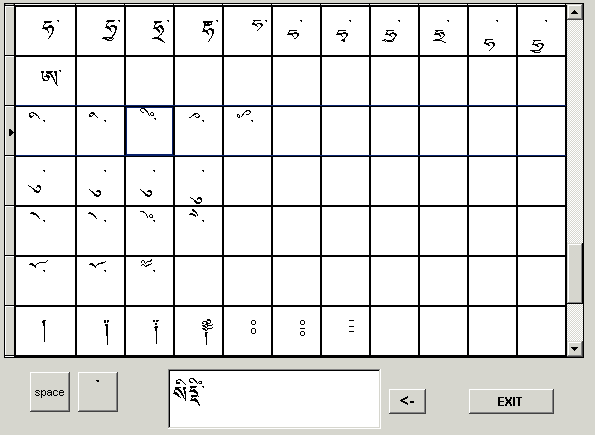
3.6 The various gliphs of the font are composed by clicking on them in the grid.
The button deletes the last gliph inserted.

3.7 - The INSERT button creates an input form; when you leave the Wylie field (with the "tab" key or by clicking with the mouse on another field ) the Tibetan field is automatically filled with the words written in Tibetan font. On top at the right in a shadowed read-only field the current number of entries in the glossary is visible. The INSERT button confirms that the new entry has been added, EXIT simply return to the main form.

3.8 - FILE button calls a form of file utility commands.

3.9 - The IMPORT button asks for a text file containing a Tibetan text
- in Wylie transliteration format where syllables are joined in words by the hyphen character "-";
- in TibetanForWindows format, where syllables or groups of syllables forming a single glossary entry are separated by the dot character ".";
This function allows the input of the Wylie and TFW fields from previously written texts.
EXPORT button writes all the glossary on a plain text file, readable by word processors for any user defined layout.
3.10 - The  button closes the current glossary.
 Valid HTML 4.01 Transitional