Login ModeStart without Account After the install, at the first Maxthon start you will see this dialog. You can choose to close it, and start using Maxthon immediately as a normal browser, in Shared Mode (without Account). Please note that in this mode many useful online services freely provided by Maxthon will be unavailable. And all your data (Customizations, Skins, Favorites, Browsing History, Typed URLs, Saved Passwords, Saved Searches, etc...) will be shared with other users of your computer. 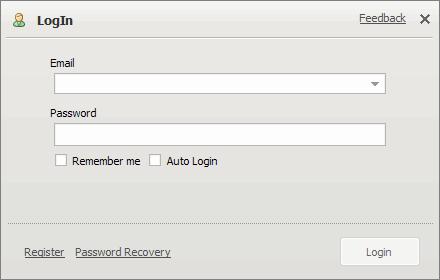 Start with Personal Account Using the Personal Mode (with Account), all your personal data will be encrypted and kept private, and available after log in at Maxthon start.
Moreover, using the Personal Mode and the Maxthon Online Services your data will be available from any location connected to the Internet.
For instance, you could work at home using the Favorites saved on your office computer, and vice versa. And, in case of accidental loss of data
(due to hardware/software crashes, bugs, viruses, etc...) you will be able to quickly restore Maxthon, importing your data from the server.
Note: For further privacy safeguard, we suggest to leave unchecked the Remember me
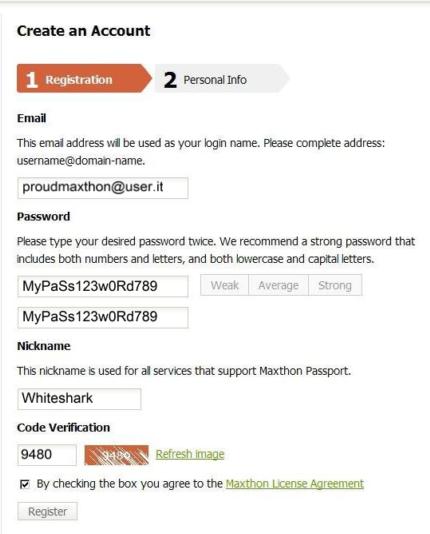
and the Auto Login checkboxes. How To Create a New Maxthon User AccountTo login in Maxthon in Personal Mode (with account) you need to register a User Account in Maxthon Passport.
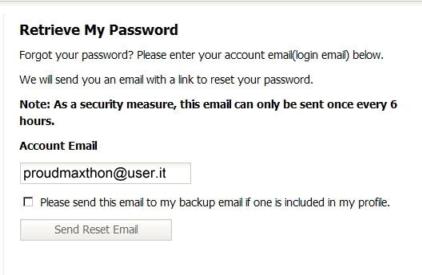
Lost Password RecoveryIf you forget your Maxthon login password, a recovery procedure is available to reset.
Go up
Copyright © 1999-2008 Maxthon International Limited. All Rights Reserved. Disclaimer: This website and this webpage are not officially supported by Maxthon® International Ltd. For documents, informations and software available from this server the author does not warrant or assume any legal liability or responsibility for the accuracy, completeness, or usefulness of any information. |